

Editor
Up to three editor groups side by side or stacked, with language-aware navigation from the command palette.
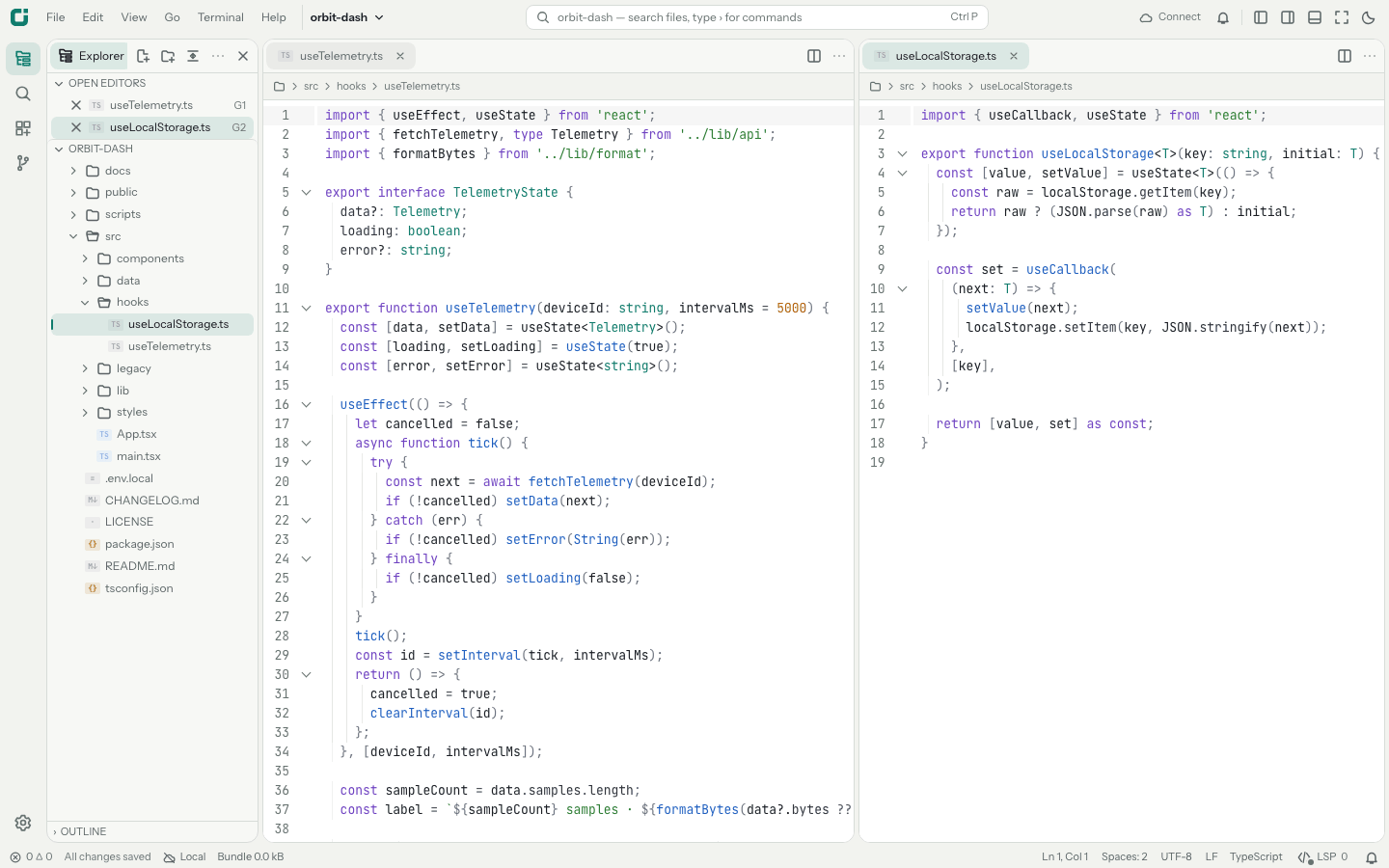
Split Editor
Split right or down into up to three groups. Pin tabs, keep preview tabs open, and move editors between groups.
Go to File, Symbol, and Line
The command palette searches files, commands, symbols in the editor, line numbers, and recent files.
CtrlShiftP or CmdShiftP
Rename Symbol and Find All References
Go to Definition, hover, Quick Fix, and signature help come from the workspace language servers.
Multiple cursors
Edit several places at once, fold regions, toggle word wrap, and format the document with the project formatter.
Search in Files
Find and replace across the workspace with a per-file preview. Check the files to change, then apply.
Diff view
Compare a file with Git, its last save, or the copy on disk, side by side or inline.
Markdown and HTML previews
Open a preview to the side as you type. The desktop app runs JavaScript in HTML previews; on iPhone and iPad, Run JavaScript starts it.
Image viewer
PNG, JPEG, GIF, WebP, AVIF, BMP, ICO, and SVG, with zoom from 10 to 1600 percent and reload on external change.
Focus mode
Toggle Focus Mode hides the title bar and surrounding workbench so the editor fills the window. Reset Workspace Layout restores the default arrangement.
CtrlK then Z
AI editing
Ghost text suggestions and selection rewrites in the editor, using the model provider configured for Oxbit Agent. New in v0.12.0.
Inline completions
After a pause in typing, the suggestion appears as dim text at the cursor. Typing the suggested characters keeps the rest, and Ctrl or Cmd with Right Arrow accepts one word. Off by default; turn it on in Editor settings or with AI: Toggle Inline Completions.
Tab accept Esc dismiss
Edit Selection with AI
Describe a change and the selection is replaced with the model’s rewrite, highlighted, as one undo step. With no selection, it inserts code at the cursor.
Model and effort settings
Set ai.model for a separate editing model and ai.effort for the reasoning level. Left empty, AI editing uses Oxbit Agent’s model.
Coding agents
Run Agent Client Protocol agents in a trusted runtime workspace, or Oxbit Agent on iPhone and iPad. Provider accounts and usage costs are separate.
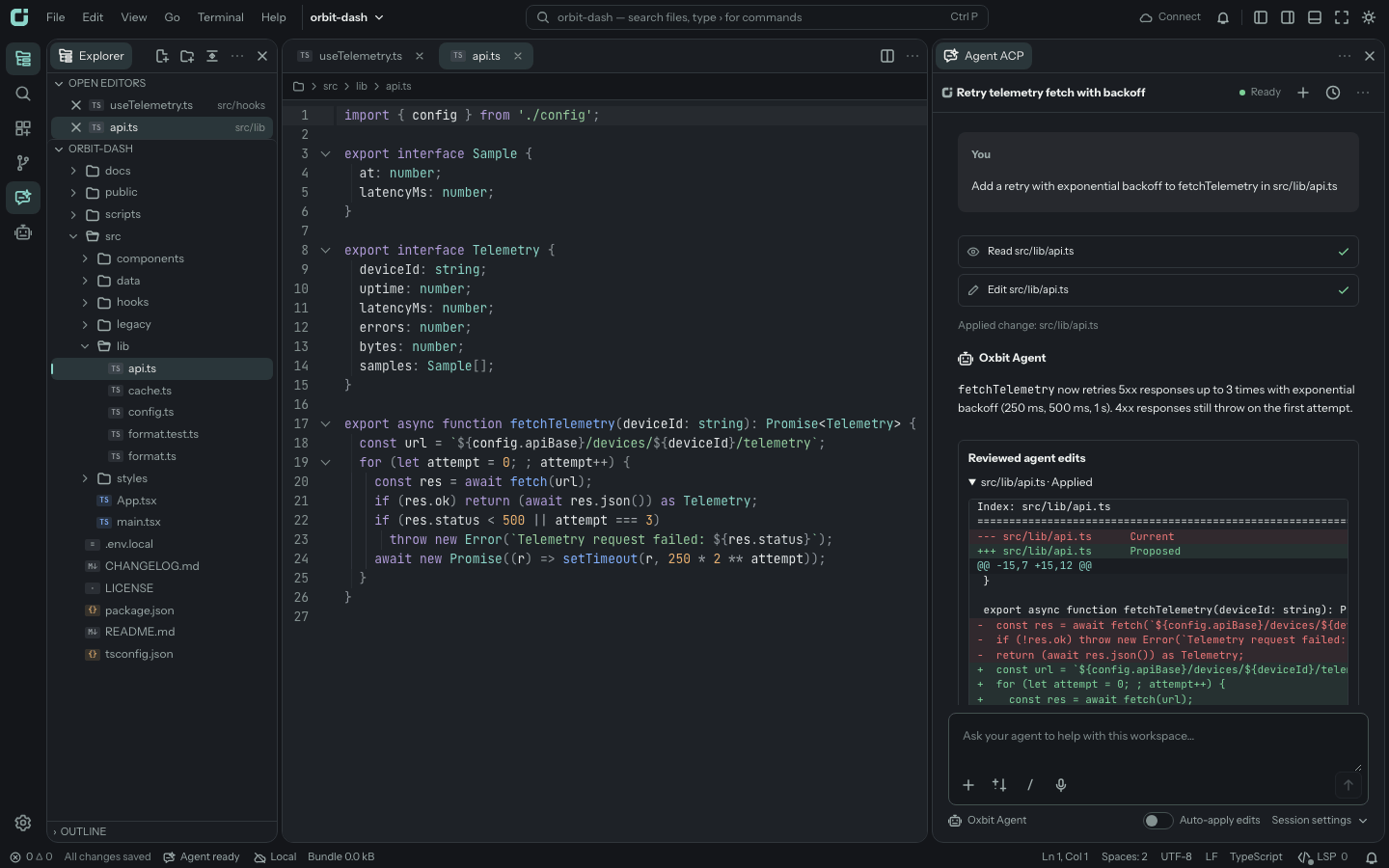
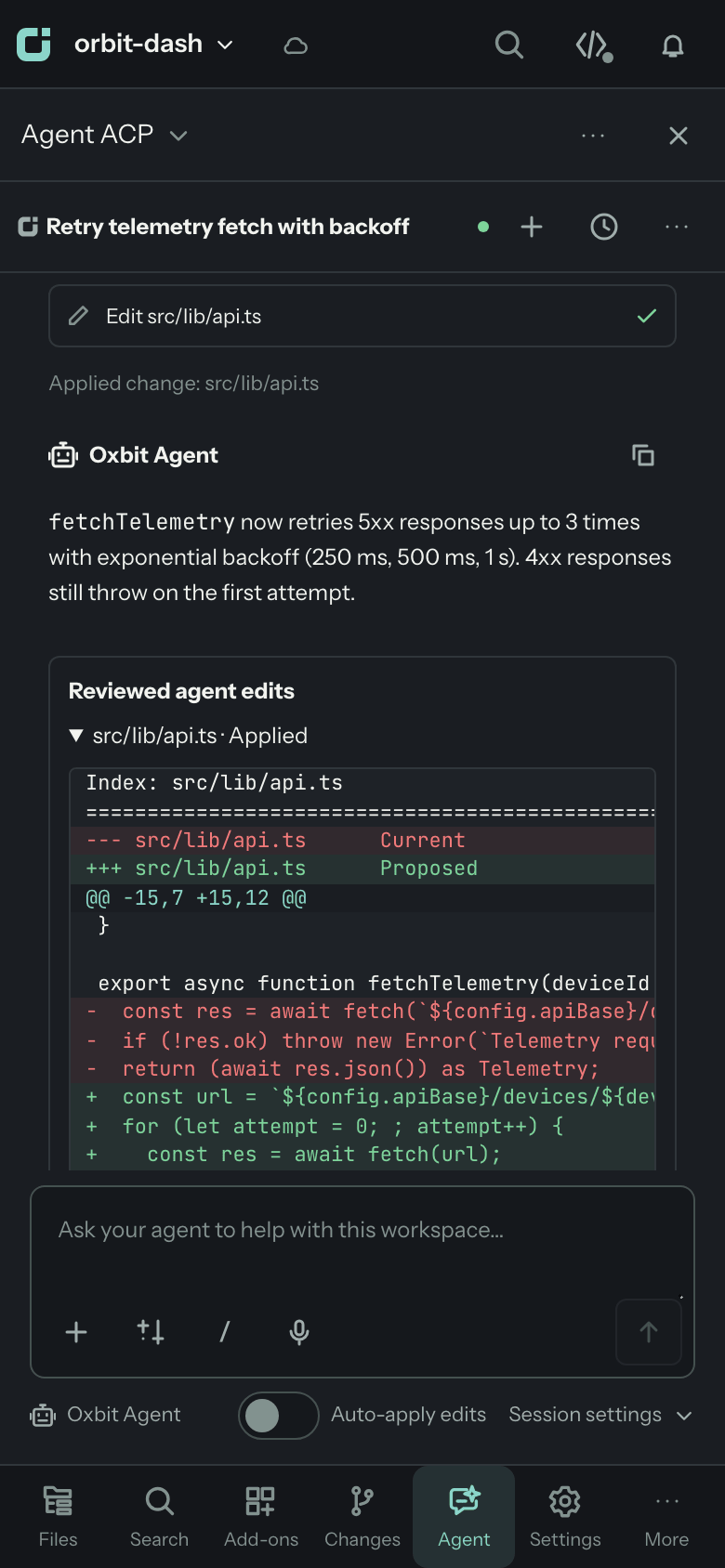
Agent ACP
Enable Agent ACP in Extensions to run these agents from the agent panel. Sessions keep running when the editor disconnects, and you reattach when it returns.
- Codex
- Claude Agent
- Gemini CLI
- GitHub Copilot
- Cursor
- Amp
- ACP Registry
- Oxbit Agent CLI
- Custom ACP
Diff review and approvals
Review each edit as a diff in the editor, or apply edits as they land. Permission controls cover tool calls, and undo is guarded.
@ mentions
Attach files, symbols, commits, and branch diffs to a prompt. The context the agent receives stays inspectable.
Subagents and history
The Agents view tracks dispatched subagents and their approvals. Search past conversations, or use Fork from here to branch a thread.
Workspace MCP tools
Through Oxbit’s MCP server, agents read files and unsaved buffers, check live diagnostics, open files in the editor, and propose edits for your review.
Oxbit Agent on iPhone and iPad
Runs in the app on the Documents folder and folders from Files, with no computer. Use an OpenAI, Anthropic, or OpenAI-compatible key, or sign in with ChatGPT.
- Ask
- Accept edits
- Full auto
- Dictation
- /context
Oxbit Agent CLI
A terminal coding agent with a TUI, a print mode for scripts, and an ACP mode for editors. It works with OpenAI or a ChatGPT plan, Anthropic, OpenRouter, Ollama, and OpenAI-compatible APIs, and reads AGENTS.md, skills, hooks, and MCP servers.
$ npm install -g @oxbit/agent
$ oxbit-agent -p "Fix the failing test"Source Control
Git in the runtime on your computer, or on the device in the iPhone and iPad app.
Stage and commit
Stage files or all changes, commit, discard, and push. Explorer badges mark modified, untracked, deleted, and conflicted files.
Branches and remotes
Check out, create, and publish branches, fetch all remotes, and pull with fast-forward only.
History and stashes
Browse commit history and manage stashes from Source Control or the command palette.
Merge recovery
Conflicted files open with a conflict toolbar so you resolve each region in the editor.
Git on iPhone and iPad
Clone, commit, and push from device folders. Add GitHub and Gitea accounts in Git Accounts and Commit Author; tokens stay in Keychain. SSH remotes use keys from SSH Hosts and Keys.
Terminals, tasks, and language servers
A connected runtime runs project tools after you select Trust workspace tools.
Terminals
Split, search, and rename terminals. A disconnected terminal reconnects when you press Enter.
Tasks and services
Import project commands, then run services with readiness checks, dependencies, dynamic ports, restart, and force stop.
Worktree lifecycle
Tasks run setup and teardown hooks when you create or remove a Git worktree.
Managed language servers
Completion, diagnostics, navigation, and formatting. On iPhone and iPad, TypeScript, JSON, YAML, Dockerfile, shell, and Python servers run on the device.
Project Intelligence
See a project’s packages and the active file’s imports, dependents, and matching test or source files.
SSH and SFTP
Connect over SSH from the desktop app to open a folder on a Linux or macOS server. The host does not need Node. The iPhone and iPad app edits server folders over SFTP.
Themes, keymaps, and extensions
Pick a color theme and icon pack, bring the shortcuts from your last editor, and extend the workbench with the public SDK.
Color themes
Choose in Settings, Appearance, Color Theme. Toggle Light/Dark Theme switches between paired variants.
Icon packs
Rainbow Pride and ClassicOS 98 icons ship with Oxbit. Import packs in the VS Code file and product icon formats.
Keymaps
Use the Oxbit default or switch to another editor’s shortcuts.
- VS Code
- JetBrains
- macOS
- Sublime Text
- Atom
- Visual Studio
- Emacs
Keyboard Shortcuts editor
Search bindings, record a new one, and resolve conflicts by replacing the old binding or keeping both.
JSON settings
User preferences, private project overrides, and optional project files merge in that order, with per-language settings.
Public SDK
Extensions register commands, panels, settings, status items, output channels, and document views. The Bundle Inspector example ships in the repository.
Drafts, recovery, and sharing
Unsaved work survives failed saves and dropped connections.
Revision-checked saves
Runtime saves check the file revision first. When the file changed on disk during your edits, the draft enters a conflict state for you to resolve. Missing files and permission errors keep the draft.
Session reconnect
Surviving terminals and agent sessions reattach after a disconnect. Commands with uncertain outcomes are not repeated automatically.
Browser workspaces
Files, settings, layout, and drafts persist in IndexedDB. Open Workspace imports and exports workspace JSON.
Share Workspace
Create revocable collaboration grants and follow a participant through the workspace. Collaboration is off by default; enable it in Extensions. Access grants and tool trust have separate controls.
Trust boundaries
Pairing, access grants, and tool trust are separate decisions. Read how workspace trust works